 Forgettable
Help & setup
Step-by-step guides for the features that need a moment of setup on your phone.
- iPhoneWi-Fi remindersOne-time Shortcuts automation
- iPhoneYour own Siri phrase“Hey Siri, did I lock the door?”
- iPhoneWidgetsHome Screen and Lock Screen
- AndroidWi-Fi & place remindersAllow location “all the time”
iPhone
Wi-Fi reminders with Shortcuts
iPhone doesn’t let apps watch Wi-Fi in the background, so the built-in Shortcuts app tells Forgettable when your phone leaves or joins a network. You set it up once; after that it works even when Forgettable is closed.
-
Check your network’s exact name
Open Settings → Wi-Fi. The network with the tick is the one you’re on — note its name exactly, including capitals and dashes.
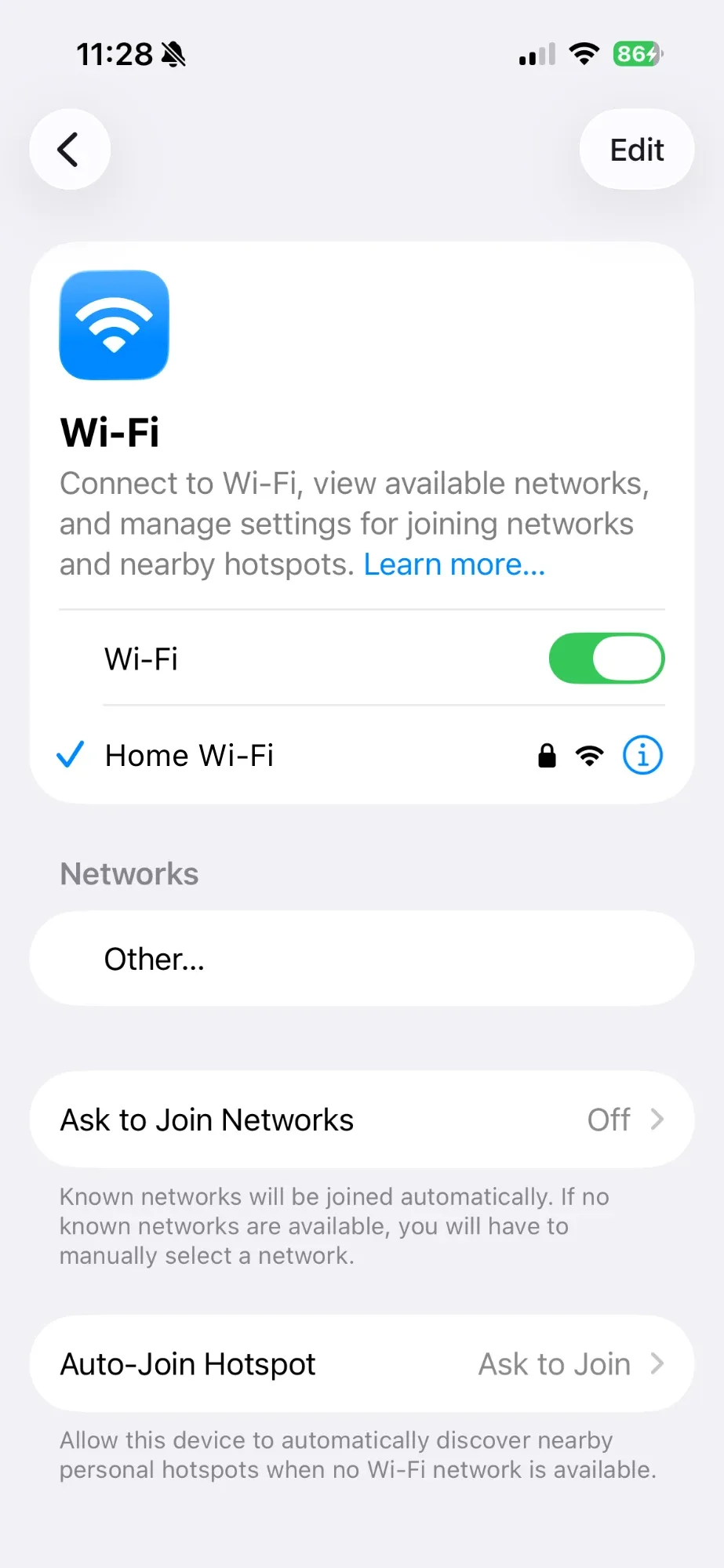 SettingsWi-Fi network name
-
Add the Wi-Fi rule in Forgettable
Create or edit an item, choose Wi-Fi, type the network name, pick When disconnecting (or When connecting) and save.
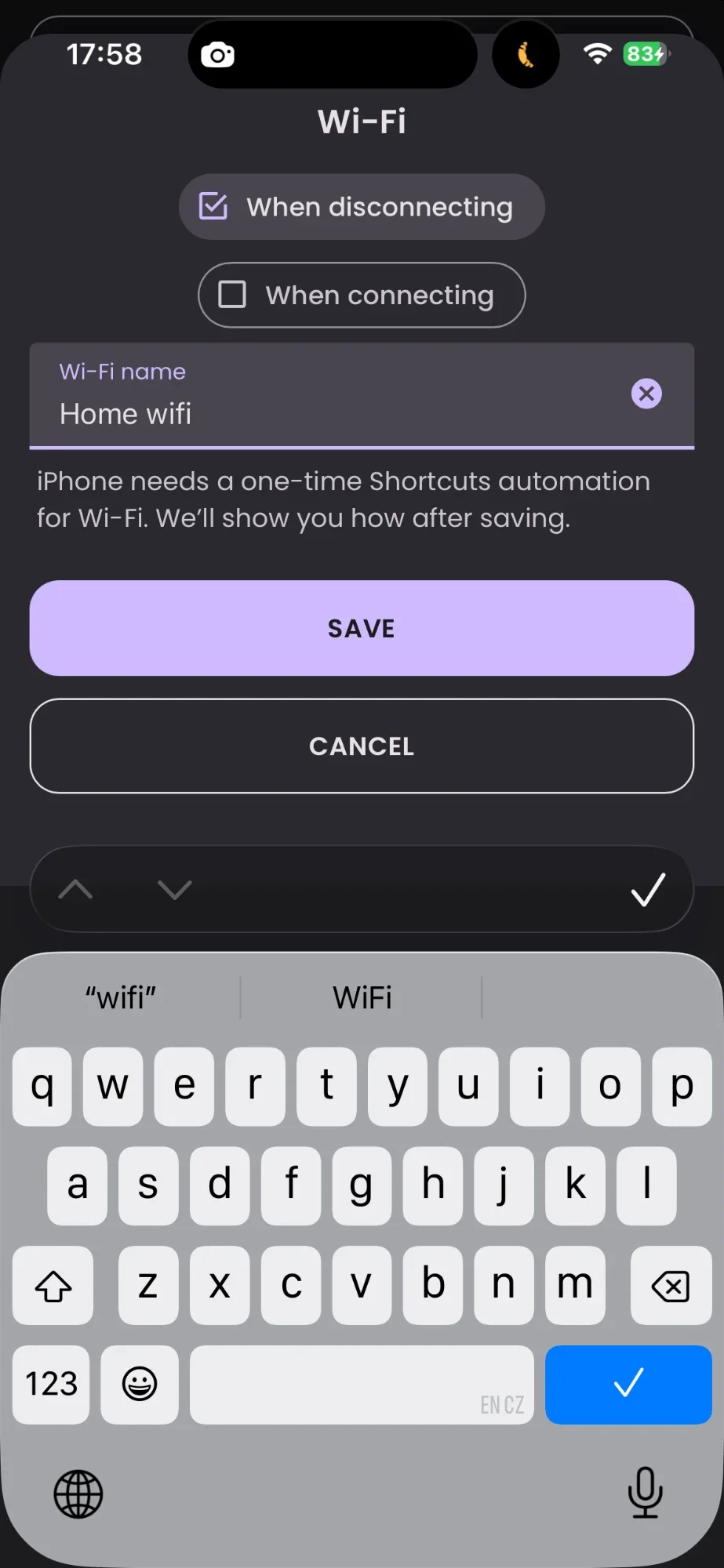 ForgettableWi-Fi sheet with the network name filled in
-
Open Shortcuts → Automation
Open the Shortcuts app (built into iPhone), tap Automation at the bottom, then New Automation (or + if you already have some).
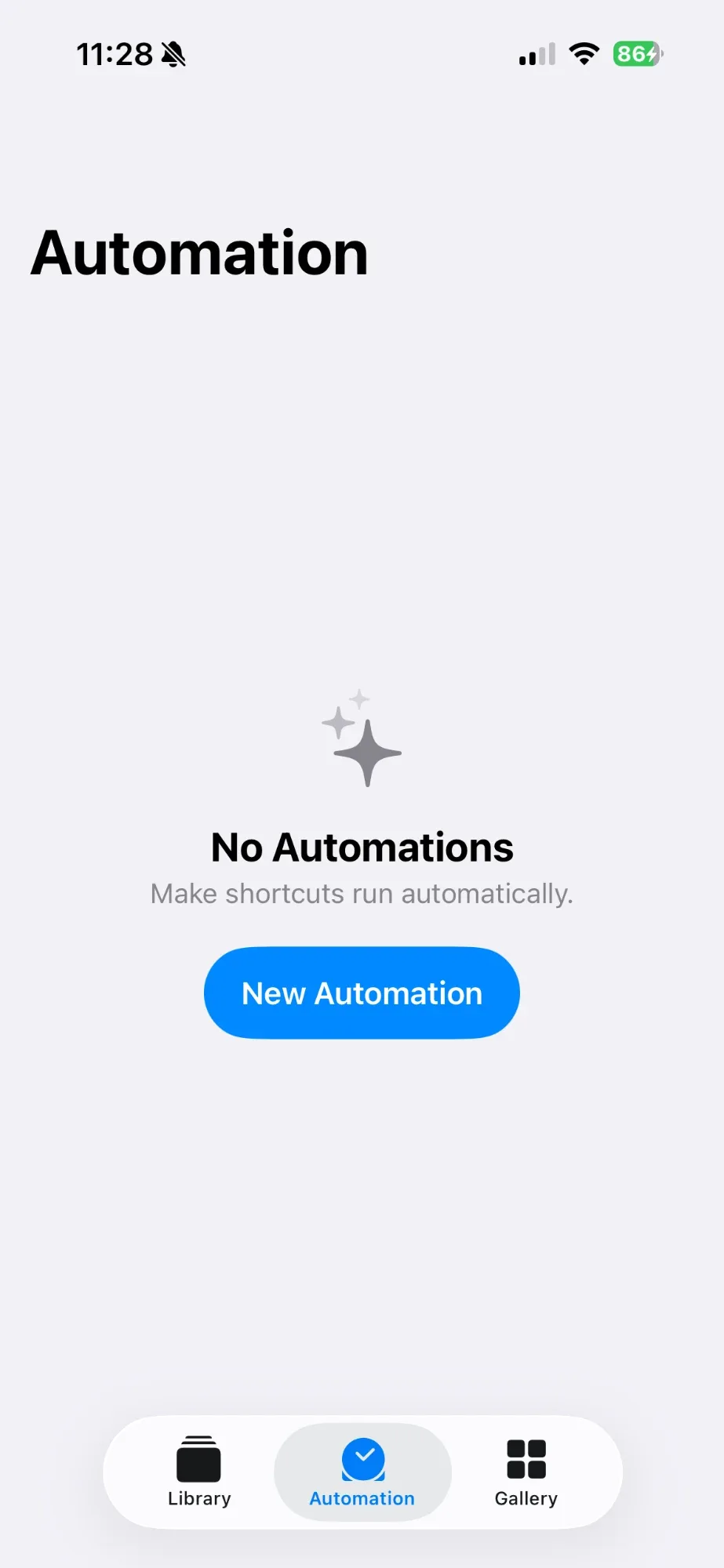 ShortcutsAutomation tab
-
Choose Wi-Fi
Scroll the list and tap Wi-Fi — “When my iPhone joins the Home network”.
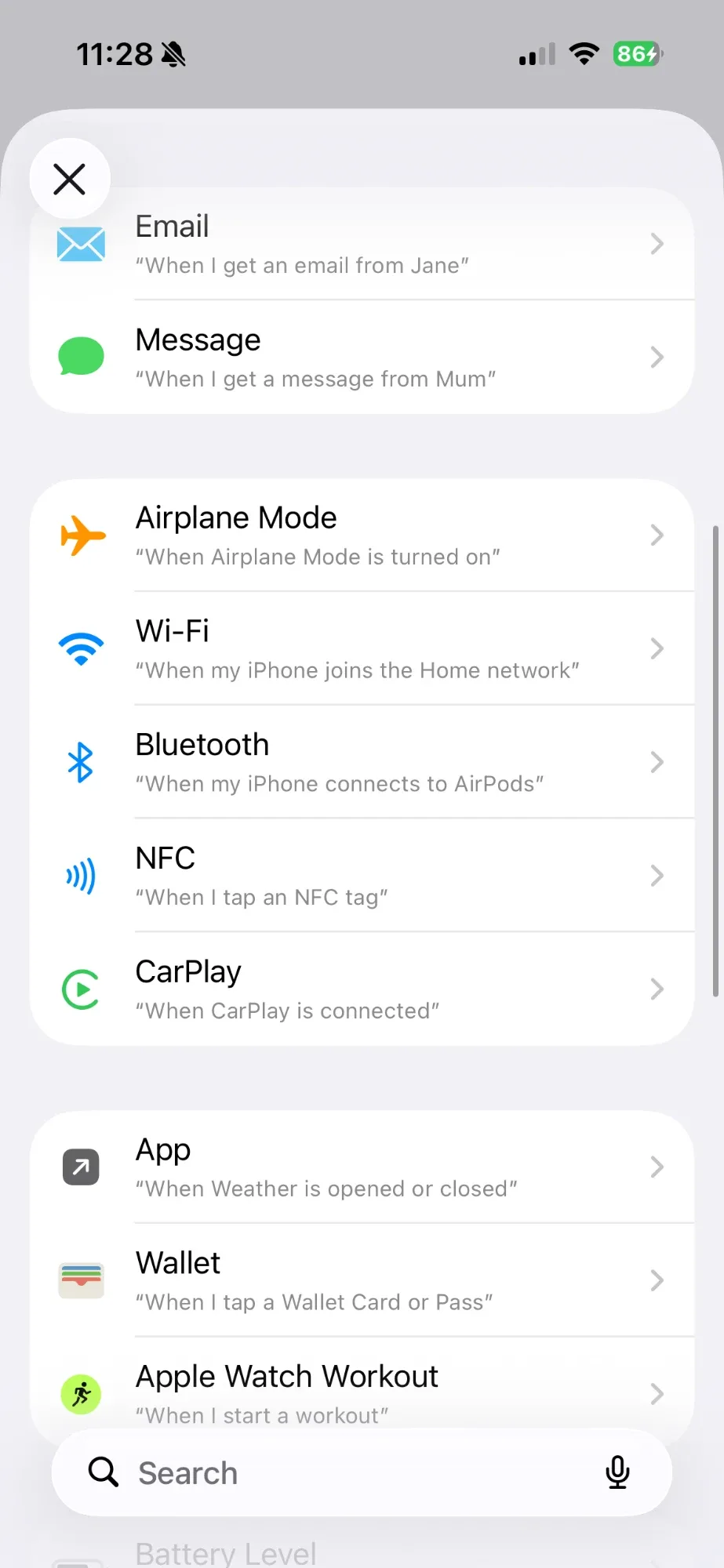 ShortcutsTrigger list → Wi-Fi
-
Pick the network and when
Tap Network and choose your Wi-Fi. Select Is Disconnected to be reminded when you leave (or Is Joined when you arrive — not both). Choose Run Immediately and tap Next.
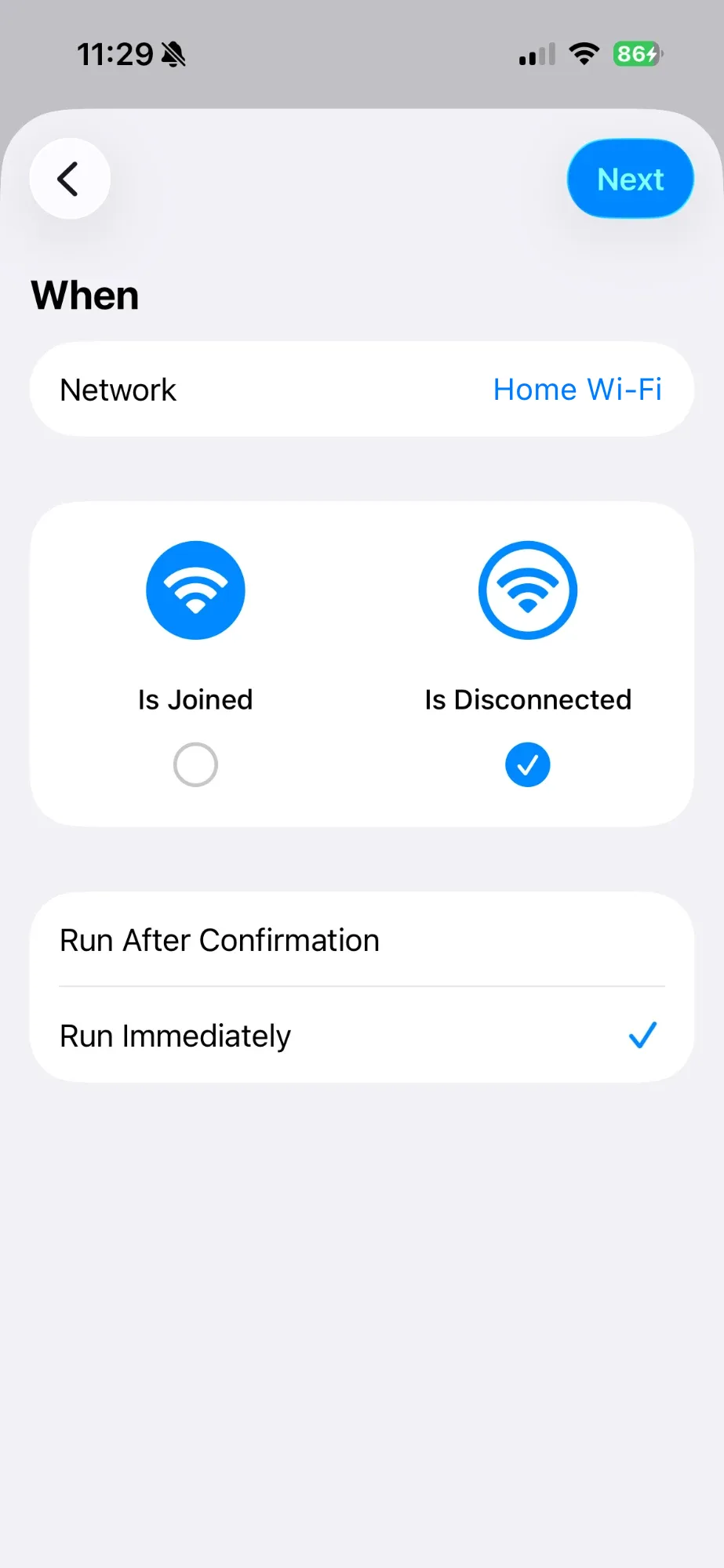 ShortcutsIs Disconnected · Run Immediately
-
Pick Forgettable from the app list
The next screen shows Get Started, My Shortcuts and a list of apps. Scroll the apps (they’re in alphabetical order) and tap Forgettable.
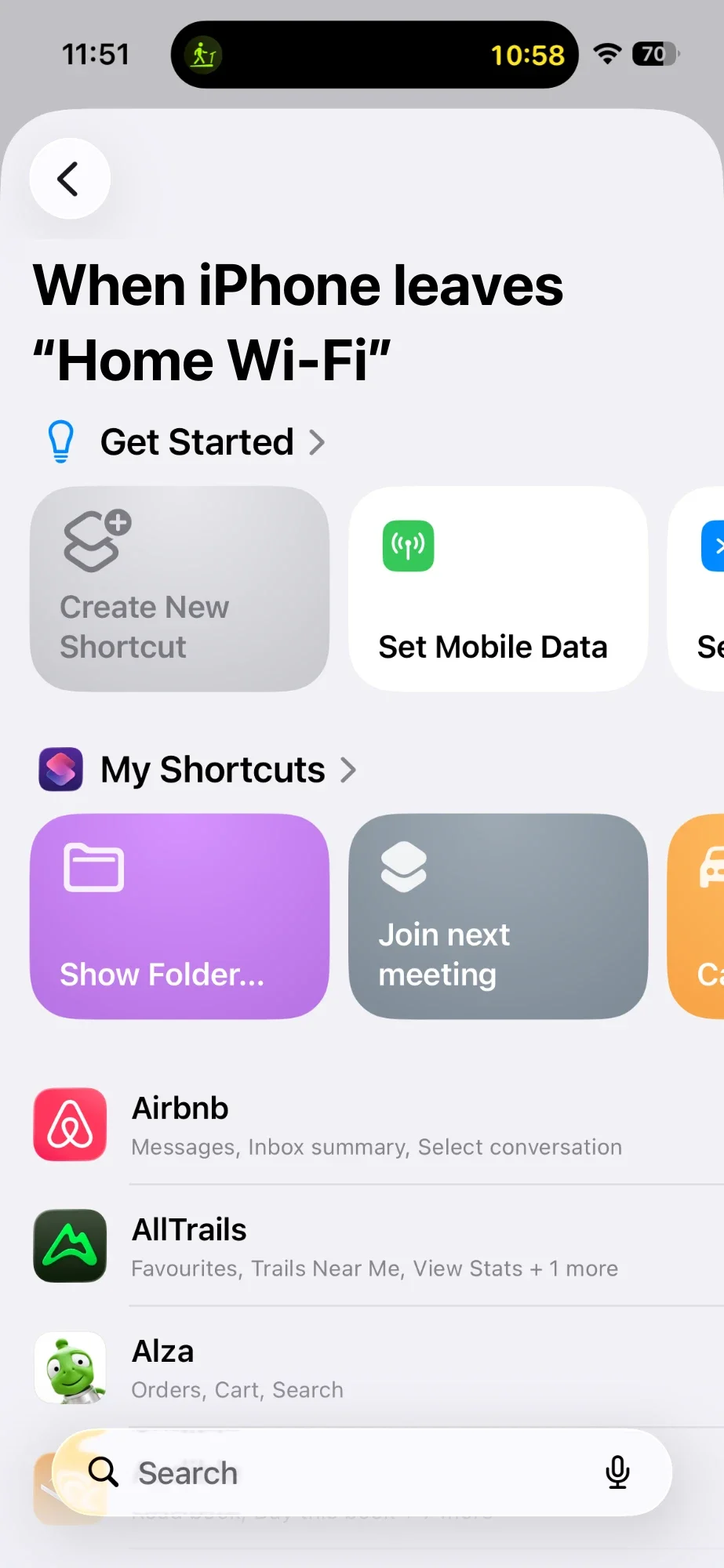 ShortcutsApp list → Forgettable
-
Tap Wi-Fi Disconnected
Forgettable shows its actions. Tap Wi-Fi Disconnected (or Wi-Fi Connected if you chose Is Joined). Not “Did I check…?” — that one is for Siri.
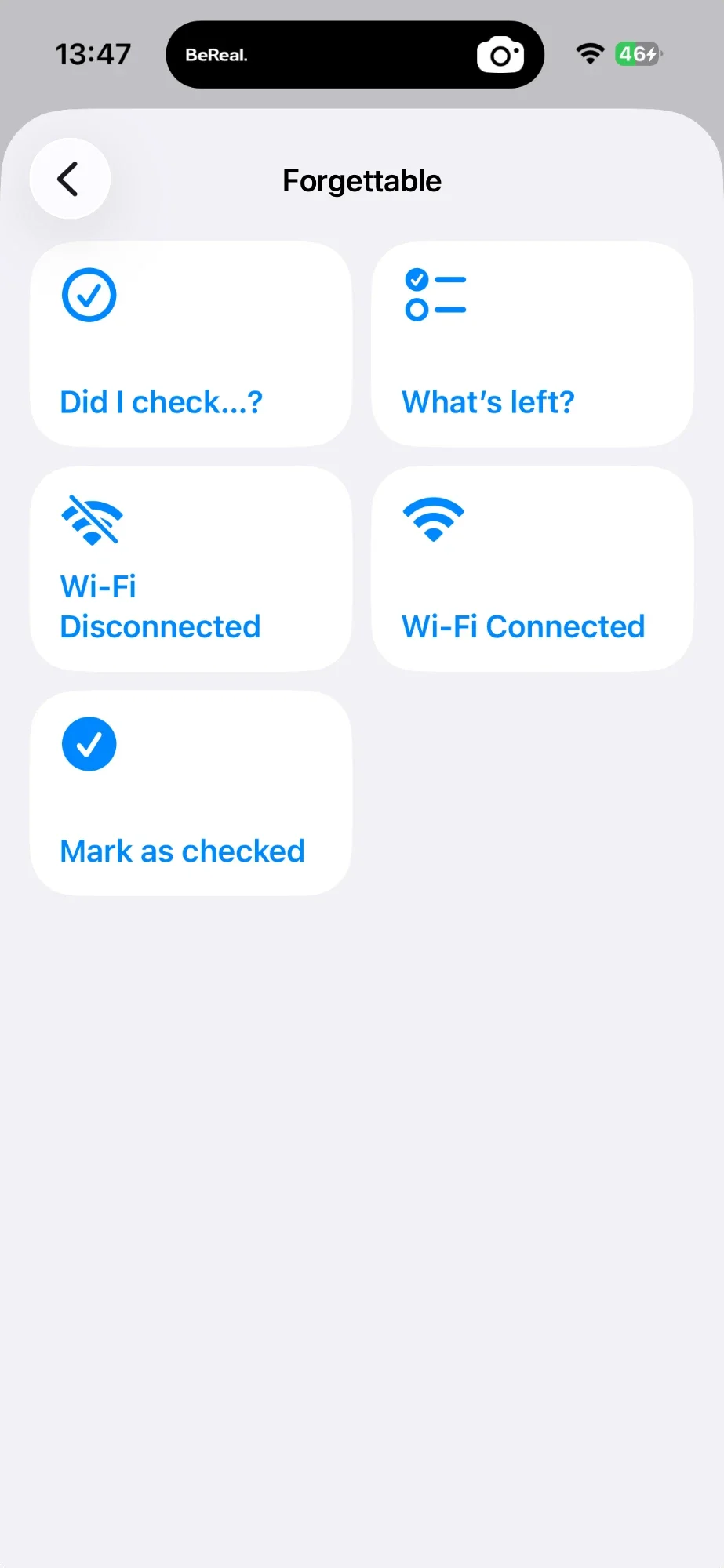 ShortcutsForgettable → Wi-Fi Disconnected
-
Finish
Tap Done. The Network field in the action is optional: leave it empty, or type the same name as in Forgettable if you have rules for more than one Wi-Fi.
-
Test it
Turn Wi-Fi off in Control Center — Forgettable reminds you what to check. Turn it back on when you’re done.
iPhone
Your own Siri phrase
Forgettable already understands “Did I check Lock house doors in Forgettable?” and “What’s left in Forgettable?”. To ask in your own words, make a shortcut with the phrase as its name.
-
Create a new shortcut
Open Shortcuts, go to the Shortcuts tab and tap +.
 ShortcutsNew shortcut
-
Add “Did I check…?”
Tap Add Action, search Forgettable and choose Did I check…?. Tap Item and pick the item, e.g. Lock house doors.
 Shortcuts“Did I check Lock house doors?”
-
Name it the way you’ll say it
Tap the name at the top, choose Rename and type e.g. Did I lock the door. Tap Done.
 ShortcutsRename to “Did I lock the door”
-
Ask Siri
Say the name of your shortcut:
Hey Siri, did I lock the door?
You checked Lock house doors today at 08:12.
iPhone
Widgets
Tick items off without opening the app, and see “Leaving Home · 1 of 3” right after you leave.
-
Home Screen
Touch and hold an empty area of the Home Screen, tap Edit → Add Widget, search Forgettable, pick a size and tap Add Widget.
 Home ScreenWidget gallery → Forgettable
-
Lock Screen
Touch and hold the Lock Screen, tap Customize → Lock Screen, tap the widget area and add Forgettable.
 Lock Screen“1 of 3 checked”
Android
Wi-Fi & place reminders
On Android, Forgettable watches Wi-Fi and places by itself — no extra app needed. It only needs location access “all the time”, because Android hides Wi-Fi names and place changes from apps that are closed.
Why “When leaving Wi-Fi range” and not “When disconnecting”? Android tells apps when your phone joins a Wi-Fi network, but not when it disconnects. So when you join your Wi-Fi, Forgettable remembers where you are and reminds you once you’re about 120 m away. Switching Wi-Fi off at home won’t send the reminder; walking out of the house will, usually within a minute or two.
-
Add the rule
In the Wi-Fi sheet, tap Current Wi-Fi to fill in the network you’re connected to (or type it), choose When leaving Wi-Fi range or When connecting, and save.
-
Allow location all the time
When Android opens the location settings, choose Allow all the time. You can check it later in Settings → Apps → Forgettable → Permissions → Location.
-
Allow alarms & reminders
For on-time reminders, allow Alarms & reminders when asked (Settings → Apps → Forgettable → Alarms & reminders).